
Blog
The Antropy OpenCart Blog
Website Timeout Errors - Why They Happen, and How to Fix Them
You may have had it a page is seemingly taking forever to load on your website, before eventually crashing with an error message about a "timeout".
Worse, you may have received emails or calls from customers saying they're getting "timeout" errors when trying to use your website!
Timeout errors can be a sign of poor performance or faulty configuration. But they can also be dealt with effectively and in many cases are easy to mitigate. Read on to find out more.
So why do timeouts happen?
When a customer clicks a page on your site, the request goes through many stages before the right page is sent back. Each of these steps takes a bit of time, and all work together to deliver the end result.
If one of these services takes too long or gets 'stuck', all the ones after it are left waiting. To prevent things taking forever, each of them has a 'timeout' threshold, a maximum amount of time it is prepared to wait for the stages that stand before it.
If this time limit is exceeded, the next step will essentially declare 'time out' and cancel the request, leaving the customer with an error or even a completely blank screen.
This failsafe is ultimately in place to prevent the system from being overloaded, but in the vast majority of cases it can be prevented.
What are the underlying causes?
Two of the most common causes of timeouts are slow code, and slow database. If your code has issues, it can cause things to move slowly, resulting in timeouts and customer facing errors.
Likewise if your database is in disarray, it takes longer to retrieve information (such as when customers search for products) or store it (such as when customers place orders). This is especially damaging when it means customers cannot check out.
Another very common cause of timeouts is server misconfiguration. If you have a server whose parameters are out of tune, it's liable to process requests slower than it is capable of, resulting in timeouts within its own components. It's important the server is well-adjusted across all its components to prevent this.
Our OpenCart Website Health Check looks for the most common ailments in servers, code and database, and provides clear recommendations to keep your site in best shape.
Sometimes, however, the simple reason is that the timeout is set too early. The server can prematurely 'give up' before the process is fully completed, especially if it's one that takes a fair amount of machine effort. The timeout limit then just needs to be increased so the server sees through its process to completion.
Identifying and Increasing Timeouts
If a process is expected to take longer than the currently set time limit, it can be beneficial to increase the timeout in certain cases. To do this, you'll first need to know where the timeout's coming from.
The various variants of timeout can be triaged by examining the errors they emanate. Here's a slightly more technical guide, starting from the most common.
Cloudflare Timeout (524)
This is seen if the website is behind Cloudflare Proxy, and can result from anything on the server taking too long to complete the request. If Cloudflare doesn't receive a response in enough time it will display its own timeout message.
To change the timeout limit in Cloudflare requires an enterprise plan - the Free plan is fixed at 100 seconds.
Temporarily disabling Cloudflare Proxy, if possible, will reveal the actual error message in cases where it is returned to the user.
PHP Maximum Execution Time
This is identified by the error message 'PHP Fatal error: Maximum execution time of 30 seconds exceeded' displayed on the page or written to the error logs. (The actual number of seconds shown of course depends on what it is set to in your site's PHP configuration).
You can increase this either in the 'php.ini' or '.user.ini' file in the website's file manager, in 'MultiPHP INI Editor' or 'Select PHP Version' if your website uses cPanel, or 'PHP Options' if running Virtualmin.
Apache Request Timeout / Gateway Timeout
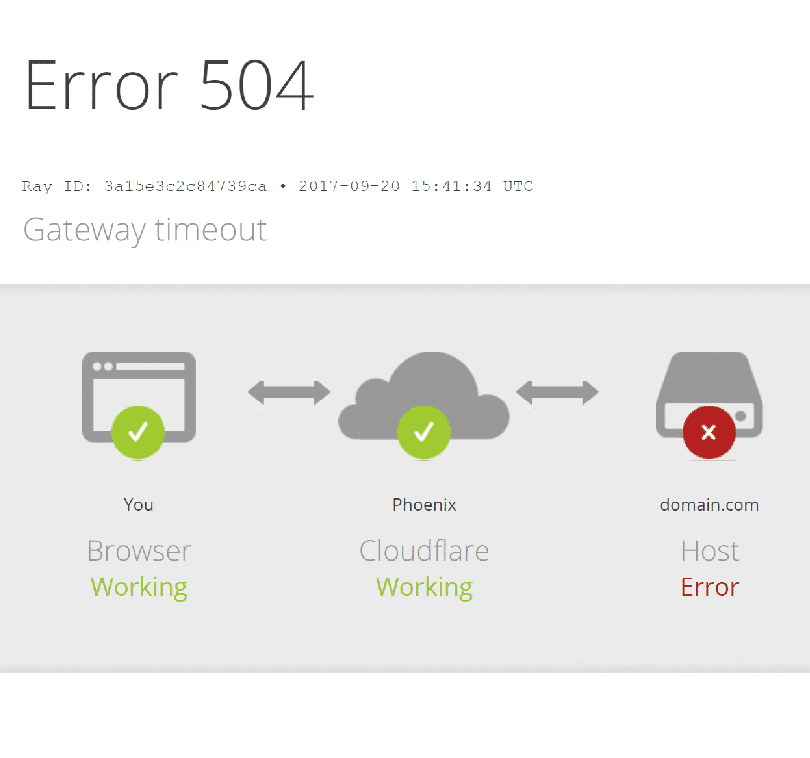
Apache is the standard web server software that powers nearly all web servers in the world. Its timeout error appears as a plain text '508 Request Timeout' or also '504 Gateway Timeout' on the page, or the message 'The timeout specified has expired' in the website error log.
If your website's running Virtualmin, you can increase this on the 'Configure Apache Website' page - look for the 'TimeOut' and 'ProxyTimeout' lines in the configuration file. If your website's running cPanel, you'll need to adjust this setting in WHM settings, which may need to be done by your system administrator.
LiteSpeed Request Timeout
Another common variant of the Request Timeout error comes from websites that run LiteSpeed Web Server.
This one can be disabled entirely by adding the following lines to the website's .htaccess file:
RewriteRule .* - [E=noabort:1]
RewriteRule .* - [E=noconntimeout:1]
It's recommended that you keep timeout configuration in other components to ensure that any processes that get stuck are not able to consume the server's resources.
FPM Timeouts
This is similar to the PHP timeouts mentioned above but comes from a different service and manifests in different ways.
More commonly as a '504 Gateway Timeout' message on the page, especially if running through PHP-FPM on Virtualmin. The setting to increase this time limit can be found in 'PHP-FPM Configuration' under the 'Resources and Limits' section in the Virtualmin control panel.
Another issue we've come across is that long-running scripts (for example, bulk product import) can mysteriously stop running with no error written to the page or the PHP logs. In these cases, the error messages 'Failed to read FastCGI header' and 'Connection reset by peer' are written to the server error log one after the other.
Adding a line to the PHP-FPM configuration file for 'request_terminate_timeout' can help with these cases - e.g. request_terminate_timeout = 600s . On most server platforms, this needs to be added to the configuration file on the server itself, but in Virtualmin it can be edited in 'PHP-FPM Configuration' under the 'Edit Configuration Manually' section.
Time Still Running Out?
If your server is still complaining of time out even after putting all the above into action, it could be a sign of a more complex underlying issue. Every OpenCart website would benefit from web hosting that is specifically fine-tuned to OpenCart for maximum performance. An OpenCart website health check often points to the source of the issue, but sometimes it needs an OpenCart specialist to take a closer look. Contact us today for a quote to bring your website back up to speed and keep it running smoothly for your customers.